Method: Vector Graphics
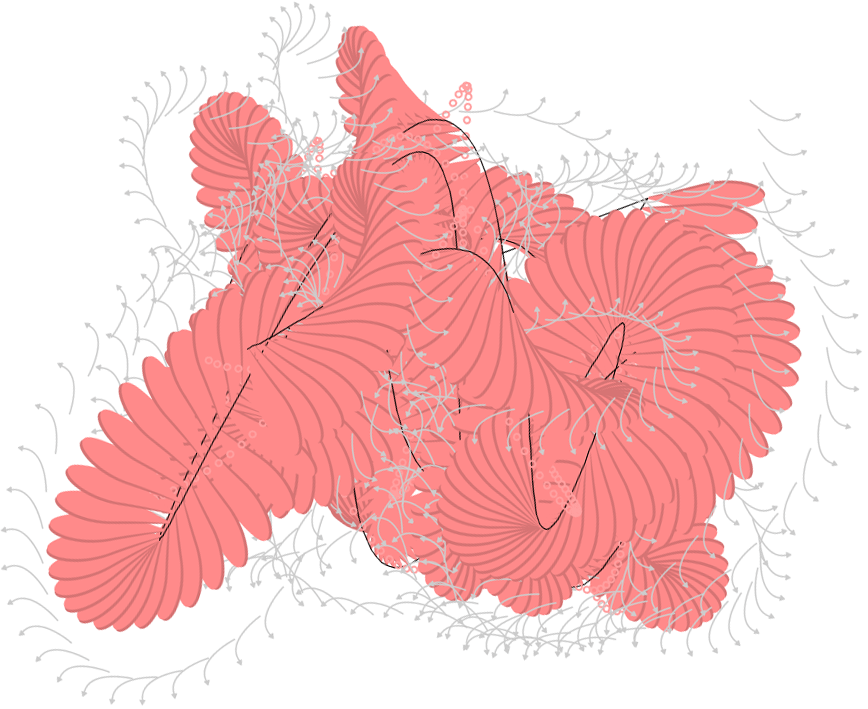
Processing provides many ways to work with vectors, for both input and output. Here I will quickly show you a simple workflow that is based on reading an SVG created in Adobe Illustrator into Processing and then exporting the processed result as a PDF for further manipulation or printing.
SVG Import (Illustrator to Processing)
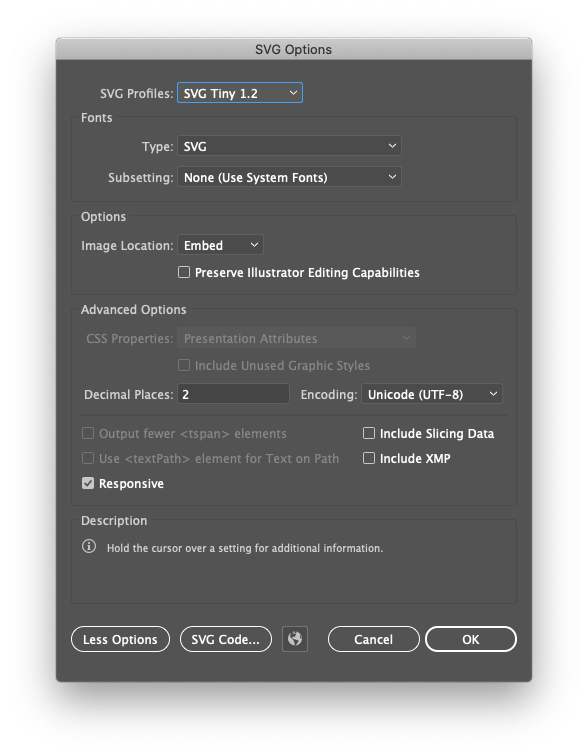
First, SVG is a great format but has several compatibility issues throughout versions and implementations. From Processing to Illustrator I had the best experience with the following settings (Save as > SVG > SVG Tiny 1.2):
In Processing we can directly load an SVG as a PShape. To draw it you can simply use shape()
PShape s;

void setup() {
  s = loadShape("shp.svg");
}

void draw() {
  shape(s, 10, 10); // where 10,10 are the x,y coordinates
}
PDF/SVG Export
PDF Export is a bit less straight forward but works equally well. Basically you need to encapsulate your drawing function between a beginRecord() and an endRecord() command.
beginRecord("PDF", "file.pdf")
// all your drawing functions
endRecord();
Harmonics - SVG Version
So let's try this with our simple Harmongraph Sketch - instead of dots we are going to use a custom SVG.
Until now we used circles, where rotation could be ignored. But with our SVGs we definitely want to manipulate this additional property, for more interesting results. I use an rotate() that increases along the curve and that I can maniputlate with my mouse's x-position, to have a quick way of interacting with it.
I've also implemented 3 keyboard interactions:
- "p" saves a PDF
- "i" saves an image (png)
- "s" turns the svg shapes on and off
Here's the extended Harmonograph code:
int steps=100;
PShape shp;
PVector shpCenter=new PVector(200,200);
boolean pdfSave=false;
boolean drawShape=true;

float cRot=0f;

void setup()
  {size(900,900);
  stroke(0);
  noFill();

  shp=loadShape("shp.svg");
  shp.enableStyle();
  }

void draw()
{
  background(255);
  if (pdfSave)
  {
    // Note that #### will be replaced with the frame number. Fancy!
    beginRecord(PDF, "frame-####.pdf");
  }
  translate(width/2,height/2);
  float r=200f;
  float timeOs=frameCount/200f;

  for (int i=0;i<steps;i++)
  {
    float ang=map(i,0,steps,0,PI*2f);

    // CALCULATE SHAPES ================================================================

    //// lissajous
    //   steps=1000;
    //   float x=sin(ang*(round(mouseX/100f)))*r;  //if you leave away the “round()” you get open shapes
    //   float y=cos(ang*(round(mouseY/100f)))*r;
    //// --------------------------------------------

    //// Go Wild -----------------------------------
    steps=600;
    float tAng=ang+timeOs;
    float x=sin(tAng*4.91)*r*sin(tAng/2.74)+cos(ang*3.16)*r/3.68;
    float y=cos(tAng*1.66)*r+sin(ang*2.77)*r/4.93;//*r*sin(os/-15);
    ////----------------------------------------------

    // Draw the SVG Shape
    if (drawShape)
    {
      pushMatrix();
        translate(x,y);

        noStroke();fill(0,0,255);
        rotate(ang*4);
        rotate(i*mouseX/500f); // !!!
        scale(0.75); // finetune the scale of the individual elements
        shape(shp,0,0);
      popMatrix();
    }

    else // default drawing
    {
      noStroke();fill(0);
      ellipse(x,y,5,5);
    }
  }

  // Save as PDF (vectors)
  if (pdfSave)
  {
    endRecord();
    pdfSave = false;
  }
}

void keyPressed()
{
  if (key=='s') drawShape=!drawShape;
  if (key=='p') pdfSave=true;
  if (key=='i') saveFrame("img-####.png");

}
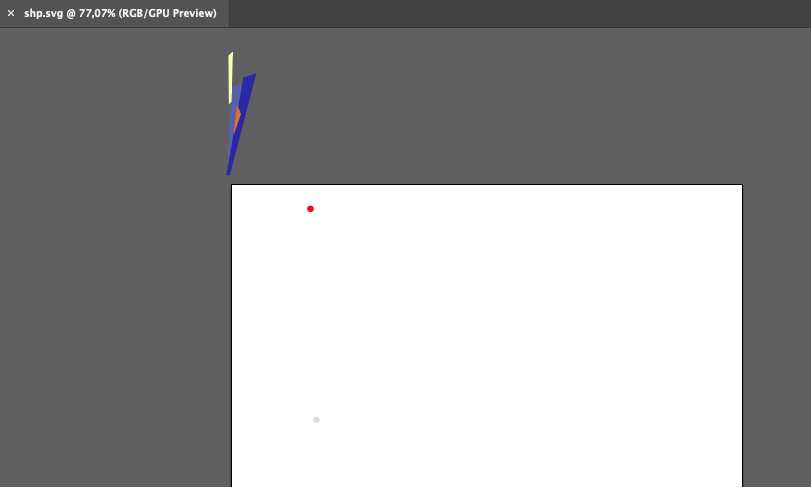
I use an extremely simple SVG as my shape. Also note, how I've placed things off the Illustrator canvas. In Processing the 0,0 will be my pivot point:
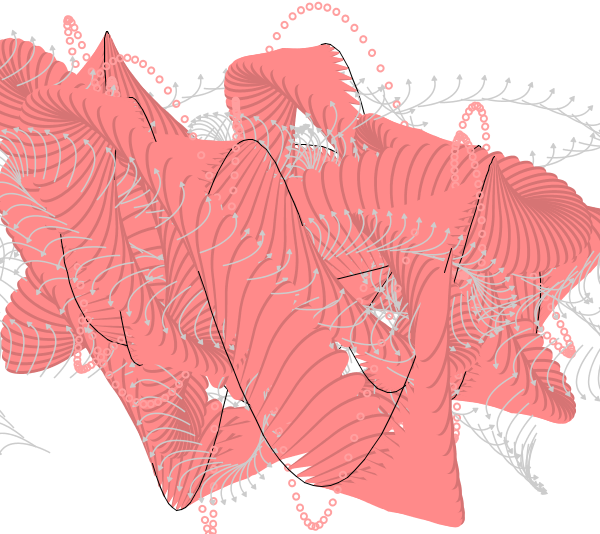
This shape produces outputs like these:
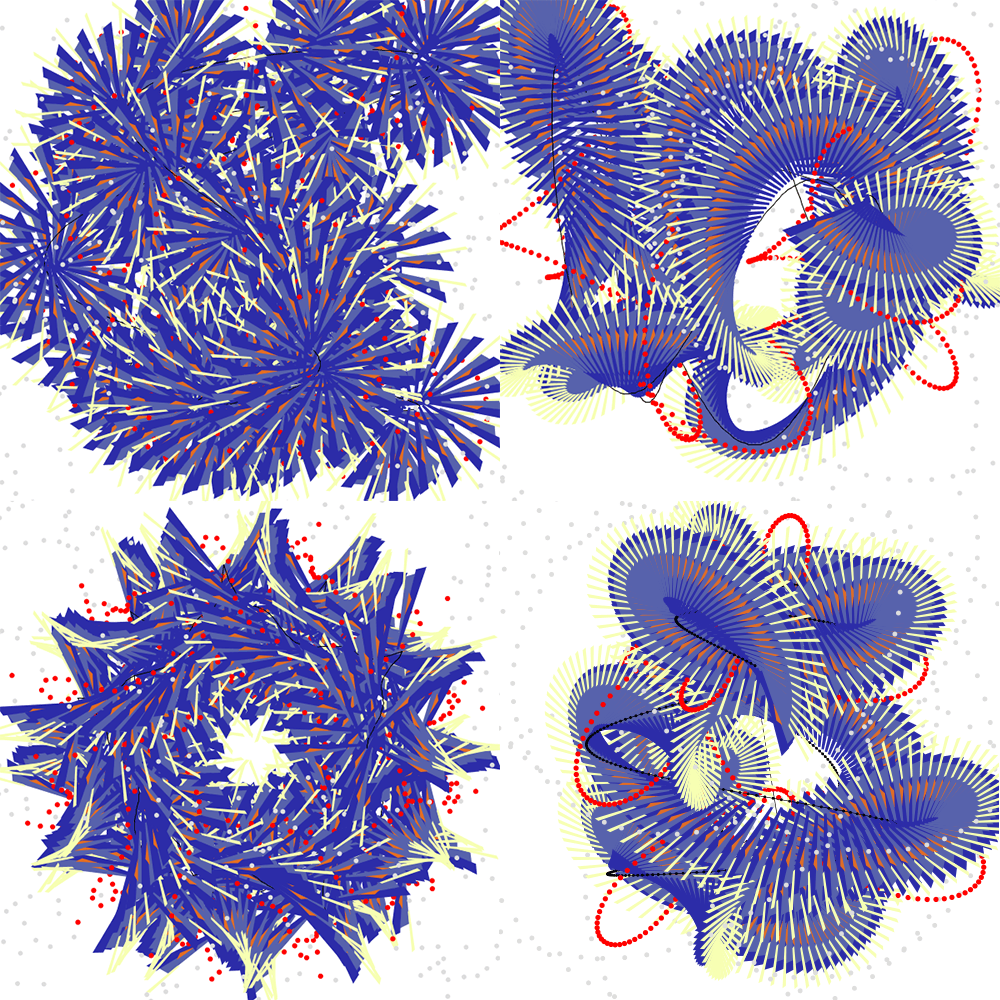
And another one...
Create your own Vector Harmonographics (optional Exercise, bonus level)
- modify any of your prior sketches to draw your custom svg shapes
- adjust until you are happy
- post to the Class04 channel